
Español · English · Português · Deutsch · العربية
Help connecting WhatsApp Business
Find the notice shown in your connection. Review the steps before trying again.
If the panel says “Previous Meta notice”, that code comes from an earlier attempt using the same link. The latest attempt did not confirm that cause: check whether it is still present before following the steps.
You’ll scan a QR code with your phone
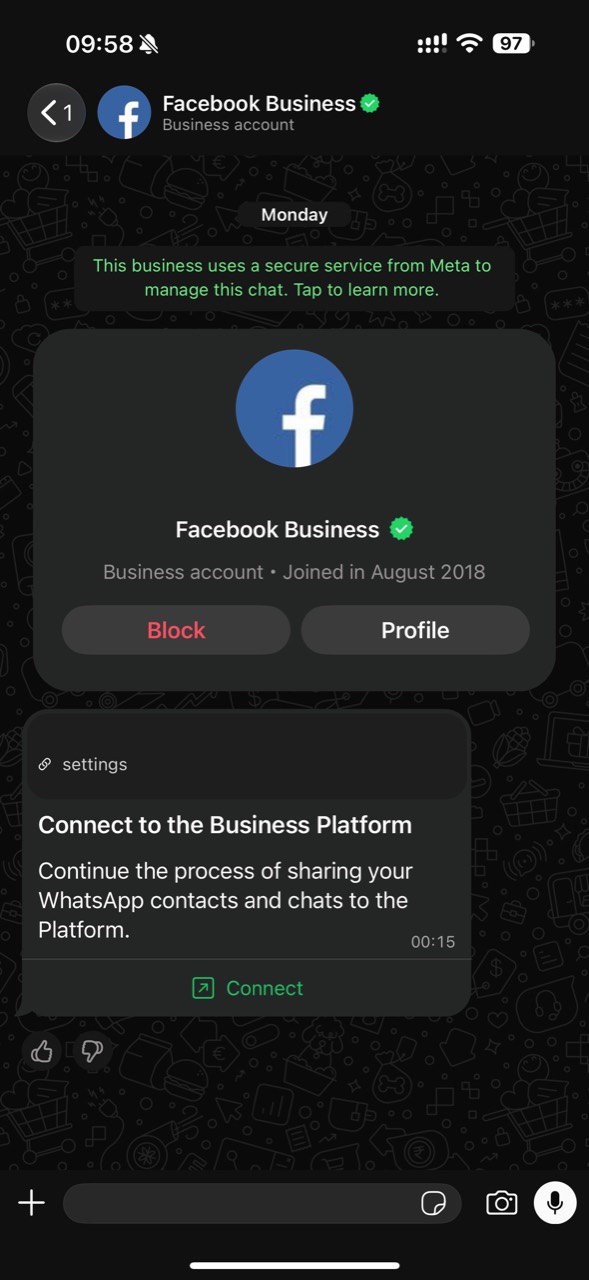
Use the phone with WhatsApp Business. You’ll receive a message from Facebook Business: tap Connect to scan the QR code.
Review your Facebook account
Meta restricted the Facebook profile used to manage business assets.
This notice does not confirm a block on your number. Do not delete WhatsApp or your chats.
- Open Account Quality with that same profile and review the notice and available review options.
- Resume setup when Meta allows it. Another already-authorized administrator of the same business can also complete it.
Retry Meta verification
Meta could not complete the verification-code request.
Do not delete your account or chats.
- Wait for the time shown by Meta before requesting another code.
- If you already use WhatsApp Business, choose to connect your existing account and continue.
Turn off automatic labels
Meta requires this setting to be off before connecting your number.
Keep your chats and labels; turn off only the automation.
- On your phone, open WhatsApp Business → Business tools → Labels and turn off Auto labels.
- Return here and try connecting again. If the setting is missing, update WhatsApp Business.
Let’s review this connection
This number already has a managed connection. We need to review it before enabling it here.
- Contact us to continue. You do not need to repeat the Meta steps or disconnect the number.
Turn off Meta AI
Business AI prevents this number from connecting.
This deletes your Business AI settings. Pausing it is not enough.
- In WhatsApp Business, open Tools → Business AI → AI replies.
- Disconnect and delete Business AI, then continue again.
Choose the right Page
The Facebook Page belongs to another business.
- Choose a Page from the same business, or continue without one if Meta allows.
- If it is missing, ask the administrator to check access.
Check your number
Meta could not connect the selected number.
Do not delete your account or chats.
- Check that it is active in WhatsApp Business and update the app.
- Try again. If it persists, contact us.
Use WhatsApp Business normally
Meta requires more real activity in the app before connecting this number.
- Update WhatsApp Business and use it for real conversations.
- Later, connect your existing account again. Meta publishes no minimum activity or timeframe.
Review your business in Meta
Meta asks you to review the status of the selected business’s ad accounts.
- Open Meta support with the Facebook account that administers that business.
- Follow the notice shown there, then return here to continue.
Review your numbers in Meta
The selected business reached its Meta phone-number limit.
Do not delete a number in use or your WhatsApp account.
- Open WhatsApp Manager and select the correct business.
- Choose the number you want to connect. To use your regular WhatsApp, do not choose a test number. If there is no room, ask Meta to review the limit.
Use an existing business
Meta does not allow another business with this account.
- Choose a business you already administer.
- If it is missing, ask its administrator for access.
Meta is not allowing this connection yet
We have not received a confirmed cause.
- Wait a few hours and check the status.
- If it persists, contact us for help.
Connection cancelled
The process closed before authorization was completed. You can resume when you are ready.
- Continue from Dirlo and complete authorization in Meta. When finished, return to this tab.
Connection unfinished
We have not received final confirmation for this attempt. Check the status before opening another link.
- If the Meta window is still open, complete the steps there and return to Dirlo.
Confirmation is taking longer
We have not been able to confirm the result yet. This does not mean Meta rejected the connection.
- Check the status. If it is still pending, wait a few minutes before checking again.
Link expired
This link can no longer complete the connection.
- Generate a new link from Dirlo and complete the Meta steps using that link.
Link no longer available
This link was revoked and cannot be reused.
- Return to Dirlo to start another attempt with a new link.
This link was already used
Check whether your number is already connected before starting another setup.
- Refresh the status in the app where you started. If the connection still does not appear, contact support before creating another link.
This link is not valid
We could not recognize the connection link.
- Return to the app where you started and generate a new link from Connect WhatsApp. Do not edit the link manually.
The connection is not ready yet
The service has not confirmed that the number is operational yet.
- Check the status again in a moment. Do not create another connection or change permissions while this attempt is being confirmed.
A connection record needs review
The service found a connection identifier already in use. This does not confirm that this number is connected.
- Check the status. If your connection is not recovered, contact support; do not disconnect numbers or create another account.
Review connection permissions
The authorization needed to connect the number is incomplete. Sharing chat history is optional.
- Continue to Meta from this screen and review connection and messaging permissions. Keep the history choice you made.
Resume your history choice
This attempt already has a different history choice saved.
- Return to the app where you started to resume that attempt. Do not change history permission in another tab. If you cannot continue, contact support.
The connection needs review
The app team needs to review the service configuration.
- Contact support. Do not change your WhatsApp account or share passwords or keys to resolve this notice.
Wait before checking again
The temporary request limit was reached.
- Wait for the indicated interval before checking the status. Do not start more attempts or request verification codes repeatedly.
Sign in again
Your session ended before setup was complete.
- Sign in with the same account and select Continue.
Review the Meta restriction
Meta reported a restriction on this number. Repeating setup will not resolve it.
- The business administrator can review the notice and review options in WhatsApp Manager. Contact support if help is needed. Do not delete the number.
Try connecting again
There was no room to connect your number during that attempt.
- Select Try again to prepare a new link. You do not need to change WhatsApp.
Your number still needs confirmation
We have not received confirmation of your WhatsApp Business number yet.
- Complete Meta’s steps, including the QR code if shown, and select Finish.
- Wait until you return to Dirlo, then check the status.
Let’s get you connected
We could not confirm what stopped the connection.
- Check the status. If it persists, tell us what appeared on screen.
If the notice does not match what you see, contact support before changing your account or disconnecting another service.